
How to reverse image search a dating profile photo
Reverse image search a dating profile photo with Google Lens, Bing, and TinEye, step by step, plus what the results can and can’t tell you.
- Author
- CheaterBusting Team
- Editor
- Reviewed by Zakaria Mehbi
- Updated
- Updated
- Reading time
- 8 min read
In this guide
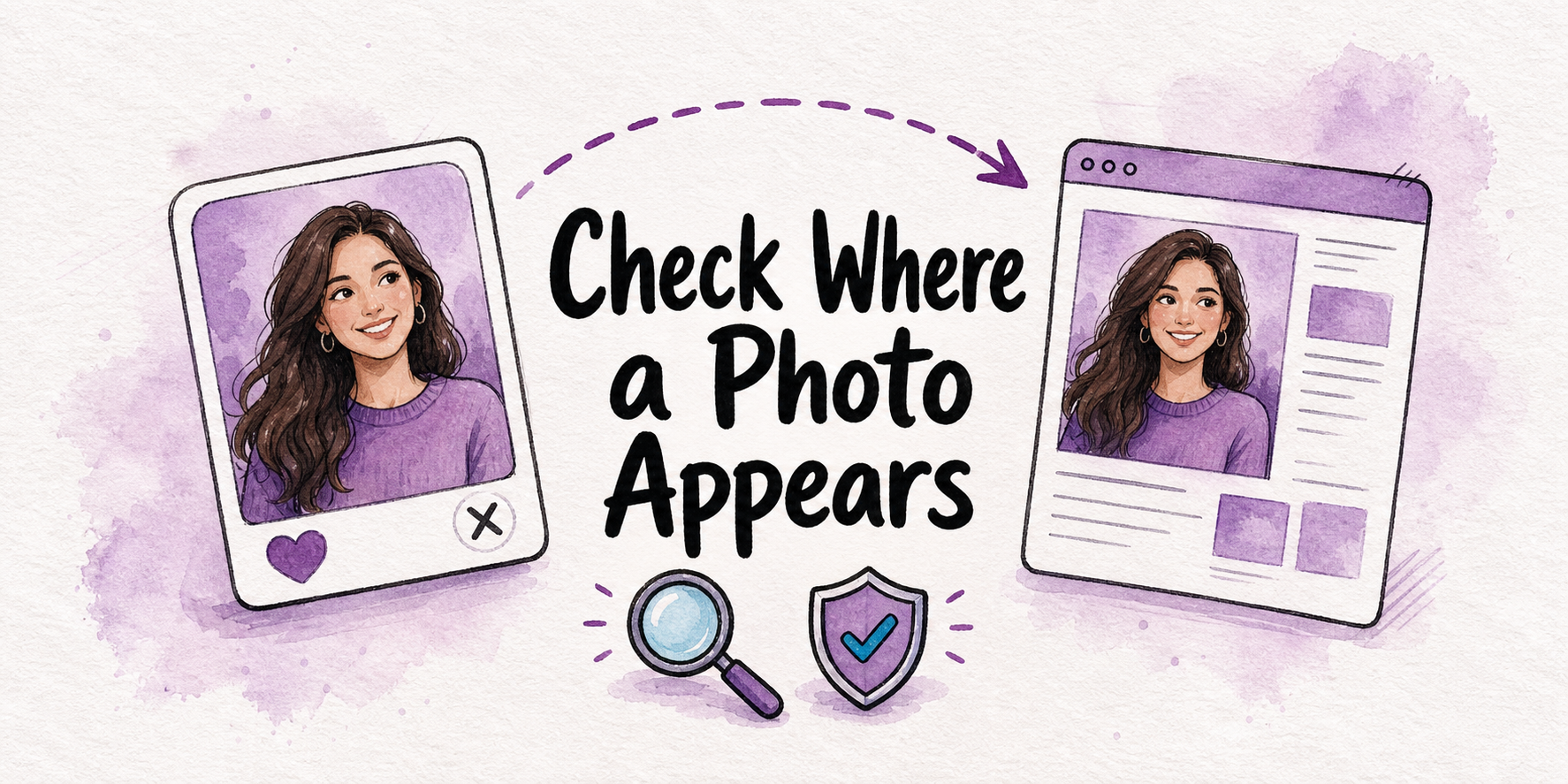
Open Google Lens, Bing Visual Search, or TinEye, upload the photo, and open the pages it returns instead of judging from thumbnails. Run the same untouched file through at least two of them. A hit shows where the picture appears online. It won’t show a profile hidden inside a dating app, so an empty result isn’t an answer.
You have a photo and a bad feeling. A reverse image search is free, takes about ten minutes, and can answer one useful question: where else does this picture live? Here is how to run it, how to read what comes back, and where it stops.
What do you need before you start?
- A photo you may lawfully use. One a person sent you, one you took yourself, or a screenshot of a profile you saw with your own eyes.
- A clean copy. If it’s a screenshot, crop away the app’s buttons and keep an untouched original.
- Ten minutes and any browser or phone.
Not sure which picture to use? Our post on which photo works best for a dating profile search helps you choose.
How do you reverse image search with Google Lens?
On a computer:
- Go to google.com and click Search by image in the search box.
- Click Upload a file, pick your photo, and click Open. You can also drag the file onto the search box, or paste an image link.
- In Chrome, you can instead right-click an image on a website and choose Search with Google Lens. Results open in a sidebar.
On an Android phone or iPhone, open the picture in Google Lens and drag the corners of the box around the part you want to search. Google says region selection works on Android and iOS.
Google says results can include similar images and websites that have the image or a similar one. Google also says it doesn’t use biometric facial recognition with Lens, though it may show results for well-known public figures. Lens finds pictures. It doesn’t look up people.
How do you use Bing Visual Search?
- Go to Bing and select the Images tab, or open Bing Images.
- Click the camera icon in the search box.
- On a computer, drop a picture into the box, browse for a file, or paste an image or URL. On a phone, choose a saved image or take a new photo.
Microsoft says the photos you provide may be used to improve Bing image processing services. Bing gives you a second index to check, which is why it earns a place in your routine.
How do you use TinEye?
- Go to tineye.com.
- Upload an image, paste an image, or search by URL. Dragging and dropping a file onto the page works too.
- Look through the matches it returns.
TinEye is the most precise of the three. It builds a fingerprint of your image, ignores file names and metadata, and finds matches that have been cropped, edited, or resized, including partial matches. It doesn’t recognize faces, and it says it cannot find different images featuring the same people.
In short, Lens casts the widest net and may show look-alikes, Bing gives you a second index to check, and TinEye is the most exact about copies of one photo but won’t find a different photo of the same person.
How do you read the results?
A thumbnail is a lead. Open each page that looks relevant and check five things.
- Destination. Does it open to a real page, or to a dead link or an unexplained preview?
- Image. Is it the identical photo, or just a similar one?
- Context. Is it a social post, an article, a profile picture, or a warning about a fake account?
- Date. Is there a visible date, and do you know what it describes?
- Contradictions. Does the page give a different name, place, or purpose?
Write down the page address and one line about what it shows. That is plenty.
| What you see | What it may mean | What to do next |
|---|---|---|
| The same photo on a public account in their name | It’s a photo they posted. | Nothing about dating apps yet. Move on. |
| The same photo under a different name, or on a site that doesn’t fit them | The photo may be borrowed. The FTC says a profile photo tied to another name or to details that don’t match is a sign of a scam. | Don’t assume the profile is your partner’s. Keep the page address. |
| A dating site page you can open, with the same photo | The photo is on that page. | Note the address and what it shows. It doesn’t tell you who runs the profile. |
| Different photos of someone who looks similar | A look-alike lead, nothing more. | See how to check a profile photo that looks like them. |
| Nothing | These tools found no copy they could show. | Read on. It isn’t an answer about dating apps. |
Why doesn’t reverse image search find dating profiles?
Because it was built for the open web, and dating profiles sit mostly inside apps.
- Google says it only indexes pages open to the public and won’t crawl a page that requires a log-in.
- TinEye says it doesn’t typically add social media images to its index.
- Tinder’s help center says you can’t search for a specific person on Tinder.
So a reverse image search of your partner’s photo can come back with their Instagram and an old work bio, and nothing from Tinder, Bumble, or Hinge. That tells you the photo is public on those sites. It doesn’t tell you they aren’t on the apps.
If your real question is whether they’re on a dating app, you need a service that looks inside the apps. That is what it means to search dating sites by photo. Our guide to face search vs reverse image search explains the difference in more detail.
Should you crop or edit the photo first?
Run the untouched file first. Cropping, filters, overlays, and rotation change what the search sees, and you want a clean baseline.
If that comes back empty, try once more with a tight crop of just the face. On a phone, you can do this with Lens’s box. Don’t sharpen, filter, or flip the picture. There is no magic crop, so treat any result from a changed image with extra care.
Is it safe to upload their photo to these tools?
Each tool has its own rule for what happens to your upload. TinEye says it never saves the images you upload, deletes them right after the search, and never adds them to its database. Microsoft says photos may be used to improve Bing. Google says it may store the URLs you search. Nothing in a reverse image search contacts the person in the photo.
Our post on whether a dating profile photo search is private and safe covers what to look for in any tool.
What do you do with what you find?
Keep it small and calm. Save the page address and a short note. Don’t post screenshots anywhere, and don’t message the profile from a fake account. A single result is a clue, not a verdict. If you’re working out the bigger picture, our guide on how to catch a cheater on dating apps walks through every method.
If both tools come back empty, why a dating profile photo search finds nothing explains what an empty page can mean.
FAQ
Can I reverse image search from my phone?
Yes. Google Lens works on Android and iPhone, and Google says its region selection works there. Bing lets you take a photo or choose a saved image from your phone. TinEye lets you upload an image, paste one, or search by URL.
Does Google Lens recognize faces?
Google says it doesn’t use biometric facial recognition with Lens, though it may show results for well-known public figures. It finds images and pages. It isn’t a way to look up a private person by their face.
Why do I get look-alikes instead of the same photo?
Google Lens is built to show similar images as well as exact ones. TinEye is the tool to use when you want copies of one specific photo, because it generally doesn’t return merely similar images.
What if the photo has been cropped or edited?
TinEye says it finds matches that have been cropped, edited, or resized. Heavier edits can still be missed. No tool promises to catch every changed copy.
Which one should I use?
Use at least two. Lens gives the widest net, and TinEye gives the most precise answer about copies. Bing is a quick second index. Run the same untouched file through each.
When the free tools aren’t enough
If the free tools show nothing and the worry stays, you can start a private search with one clear photo and the city they live or work in. We check up to 12 dating apps, never contact them, and send you a report with a confidence note on every possible match.
Sources
Checked October 2026.
- Google Search Help: Search with an image on Google
- Google Search Help: Region selection in Lens
- YouTube Help: Use Google Lens while watching a YouTube Short (Lens and facial recognition)
- Google Search Central: Google Search technical requirements
- Microsoft Support: Using Bing Visual Search
- TinEye Help: How do I search on TinEye?
- TinEye Help: How does TinEye work?
- TinEye Help: Can TinEye find similar images? Does TinEye do facial recognition?
- TinEye Help: About the TinEye index
- TinEye Help: Does TinEye keep images I upload during a search?
- Google Search Help: Manage your saved media in Search Services History
- Tinder Help Center: Can I search for a specific person on Tinder?
- FTC Consumer Advice: What you need to know about romance scams
Next decision
Need broader evidence across covered apps?
Review scope, confidence limits, and pricing before starting any private search.
Private & anonymous. We never contact them — and your details are never shared or sold.
Continue reading
Related evidence guides
Photo search vs name search: which finds a dating profile?
Photo search vs name search: which one finds a dating profile? See how each clue holds up on Tinder, Bumble, and Hinge, and how to combine them.
Face search vs reverse image search for dating profiles
Face search vs reverse image search: one finds copies of a picture, the other finds faces that look alike. See which one can reach a dating profile.
How accurate is dating profile photo matching?
How accurate is dating profile photo matching? There is no single number. See what makes a match reliable, what causes wrong ones, and how to check.

Tonight you can keep wondering.
Or you can see what’s out there.
Two minutes. One payment. A private report by a guaranteed date, and we never contact them.
Private & anonymous. We never contact them — and your details are never shared or sold.
From $119 for 4 apps$239Paid once · report in 21 days, or 7 with Express